
Desk.com | Salesforce Desk
Desk.com | Salesforce Desk
A quick guide to integrate Desk.com with GrowthScore
Now you can also connect GrowthScore with Desk.com to find your happy customers and nurture their happiness to get yourself more reviews & testimonials.
Every time customer responds that they are happy with your customer support, this integration will send across their details from Desk.com to GrowthScore – and help you ask them for reviews, testimonials, etc.
Here is how this integration will be achieved:
- On Desk.com, Install a Custom App that points to GrowthScore
- Add an Action for the Custom App to send required details from Desk.com to GrowthScore
- Define a Rule that will Trigger the Action – allowing contact info to flow from Desk.com to GrowthScore
Install Custom App pointing GrowthScore
Section titled “Install Custom App pointing GrowthScore”This task is about creating a webhook which will receive the customer data from Desk.com which requires us to create a Custom App of type Webhook on your Desk.com Admin panel.
Navigation
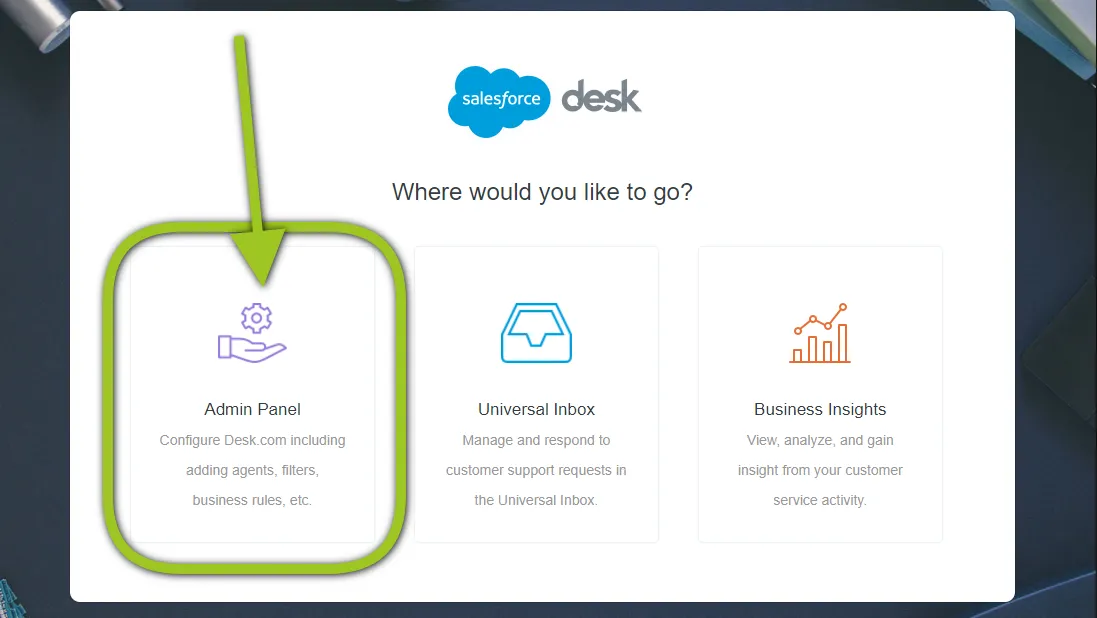
Section titled “Navigation”Login to the Admin panel of your Desk.com account
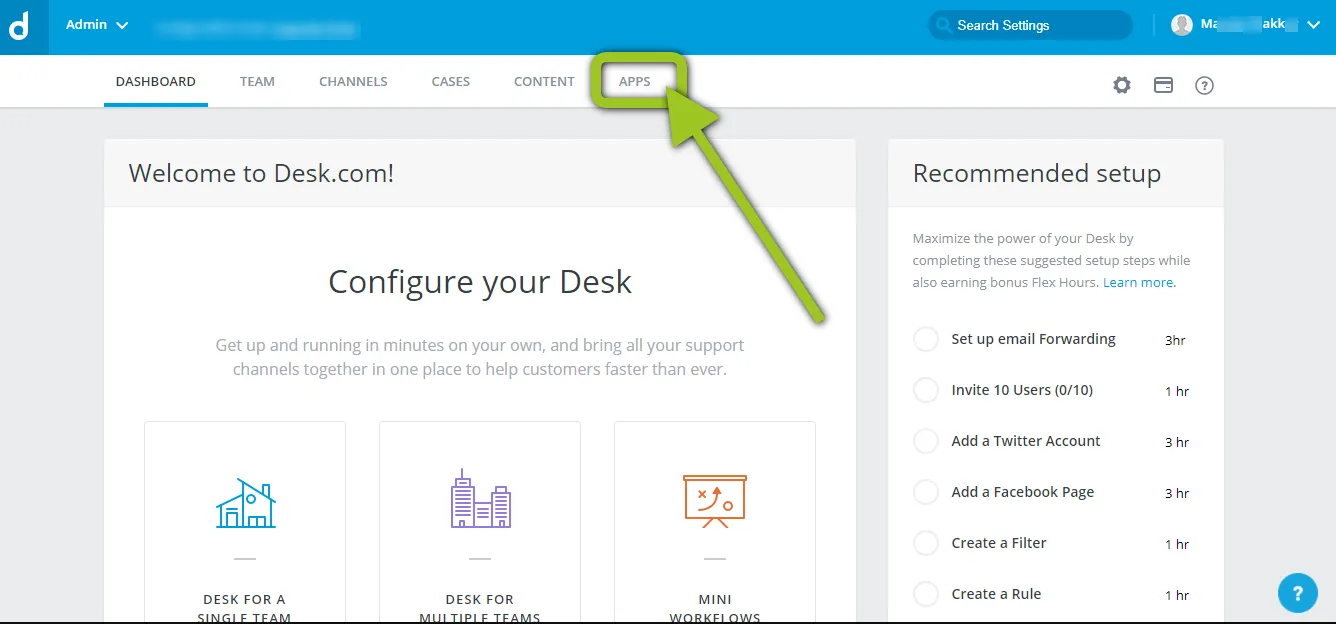
Once logged in, navigate to the Apps section

Scroll down in the Browse Apps section to add a Custom Action and click on Install.
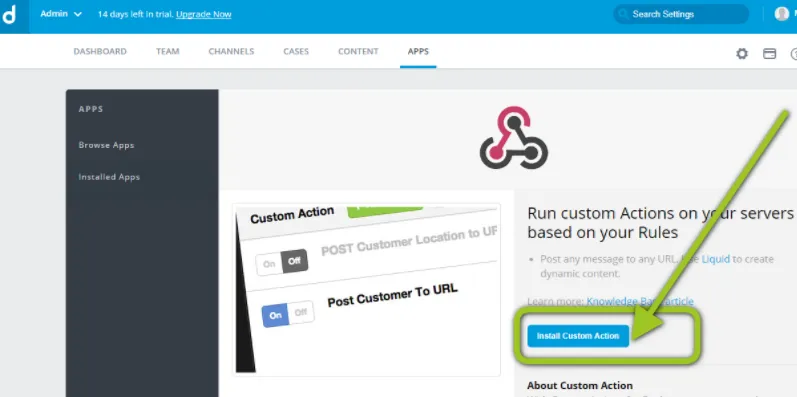
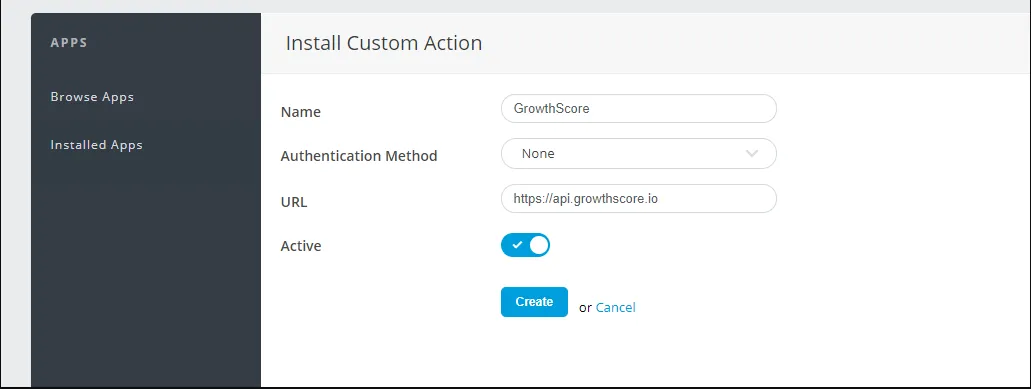
Proceed further by clicking on Install Custom Action and accepting the Terms & Conditions
Declare Params for adding GrowthScore
Section titled “Declare Params for adding GrowthScore”Now, name your GrowthScore app as you deem fit.
You can set the Authentication Method as NONE.
Set URL as: https://api.growthscore.io
Click Create.
Add Action to Custom App
Section titled “Add Action to Custom App”Now that you’ve have setup the Custom App, we will add an action to this app i.e. webhook – which will define what details to send across & to append the URL for a secure exchange.
Click on Add Action
Section titled “Click on Add Action”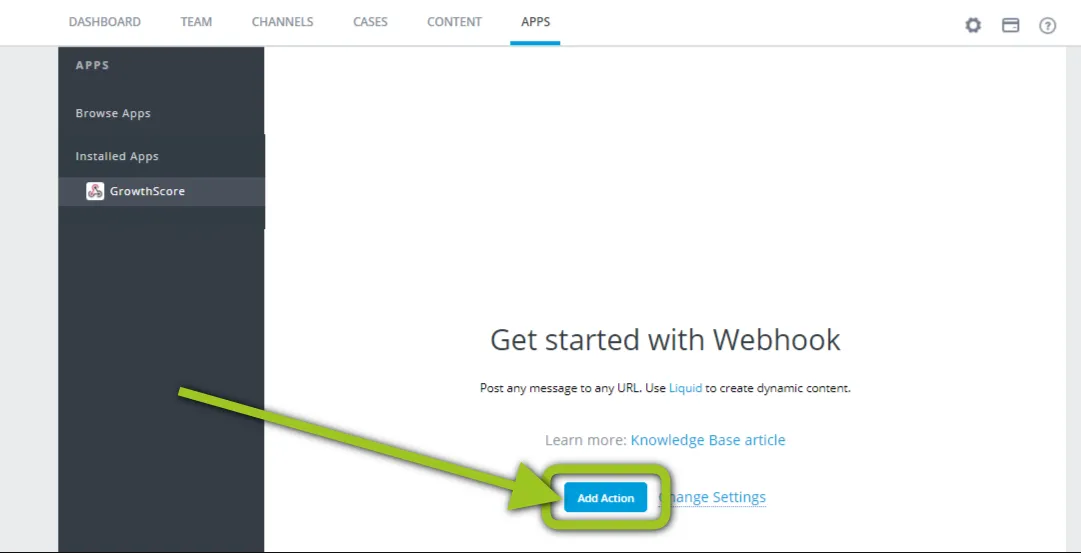
Under your Installed Apps, you’d have the newly installed app, in this case we are calling it GrowthScore. Navigate to the same and Add Action.
Define the Action parameters
Section titled “Define the Action parameters”Now, we will have to declare the parameters that will help Desk.com send the customer data to GrowthScore.
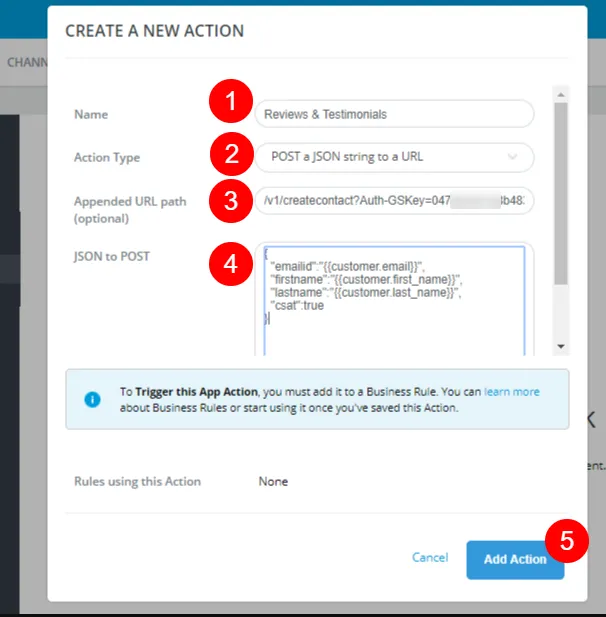
Step 1
Set an appropriate name for this action like we did here: Review & Testimonials
Step 2
Set Action Type as “POST a JSON string to a URL”
Step 3
Set Appended URL Path as: /v1/createcontact?Auth-GSKey=your_auth_key
Replace your_auth_key with your own GrowthScore Account API key
How to get my GrowthScore API Key
Step 4
Define the parameters to be passed in the JSON to POST as:
{
“emailid”:”{{customer.email}}”,
“firstname”:”{{customer.first_name}}”,
“lastname”:”{{customer.last_name}}”,
“csat”:true
}
Step 5
Click on Add Action to complete this.
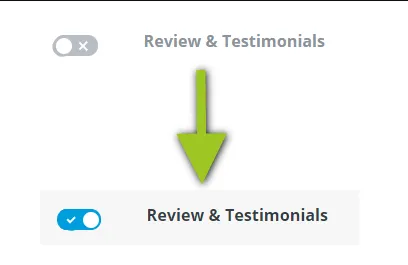
In the end, ensure to switch the Action ON.
Define a Rule to Trigger the Action
Section titled “Define a Rule to Trigger the Action”Now we will create the rule which will trigger the custom action we’ve defined. This rule will ensure that only the most happy customers are sent to GrowthScore.
Navigation
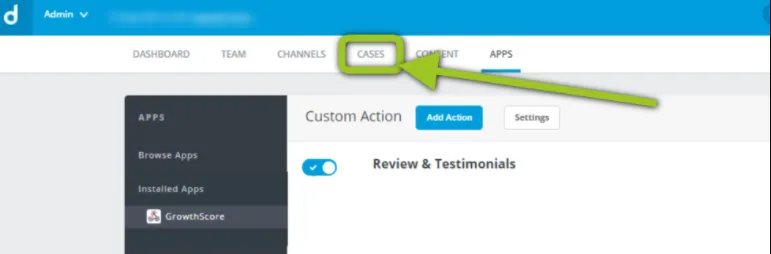
Section titled “Navigation”Navigate to Cases section on your Admin Panel now.
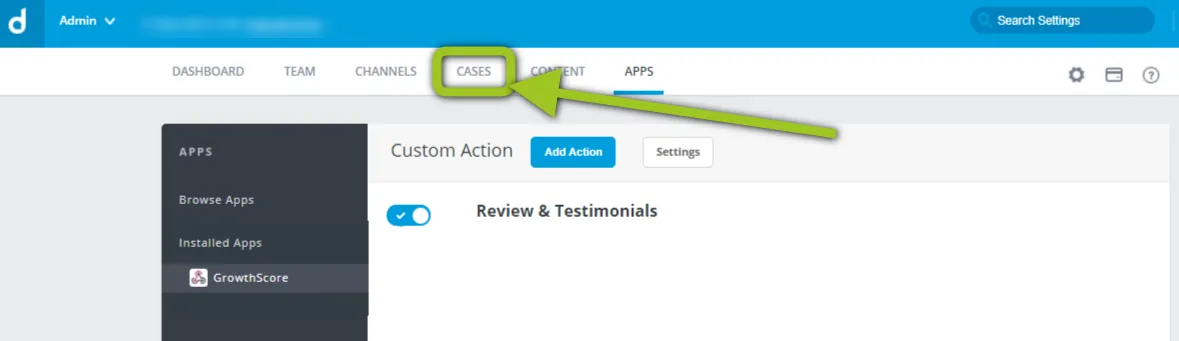
Go to Rules under the Cases section here
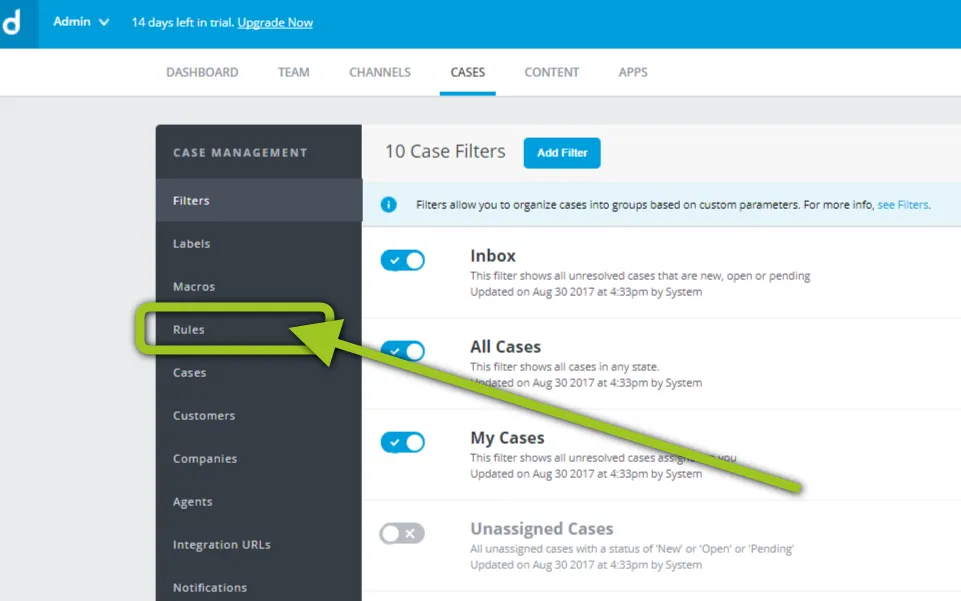
Under the Rules, navigate to CSat Submitted
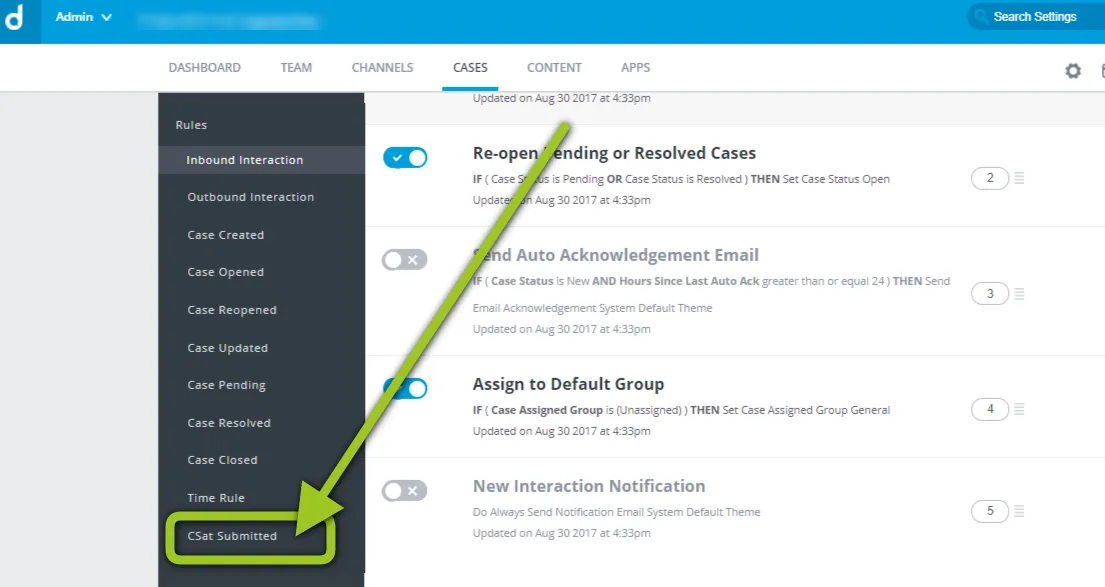
This should be featured as the last option under the Rules.
If you do not see it, check and ensure that your Customer Satisfaction surveys are switched on (found under Cases > Customer Satisfaction)
Create Rule
Section titled “Create Rule”Create the rule that will help us trigger the GrowthScore Custom action we defined a while ago. Click on Add Rule.
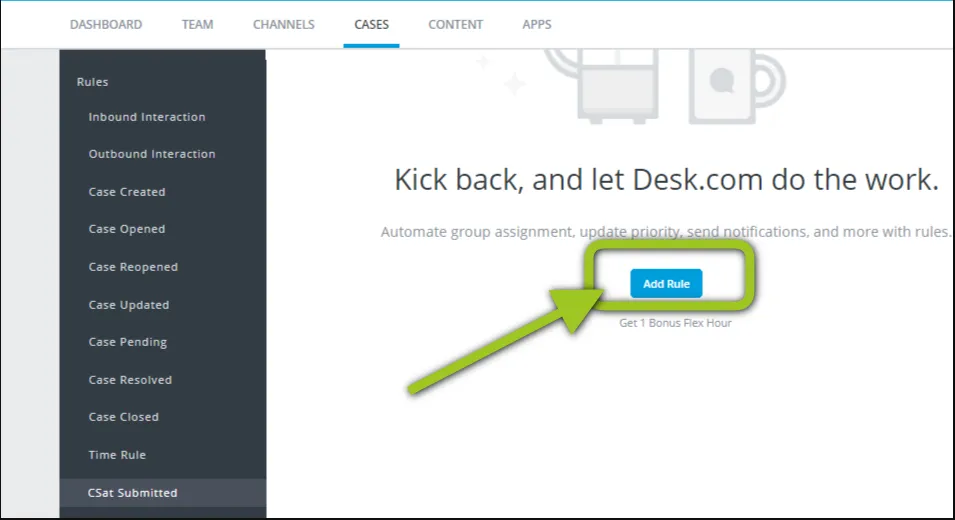
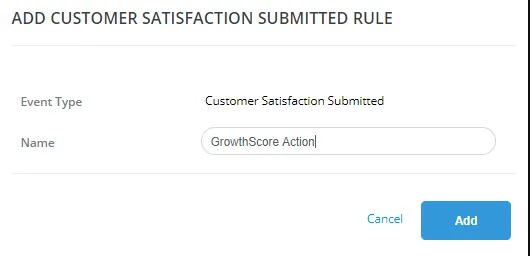
Name it as GrowthScore Action for your own convenience. Click Add to proceed.
Once added, the rule will be popped up for updates.
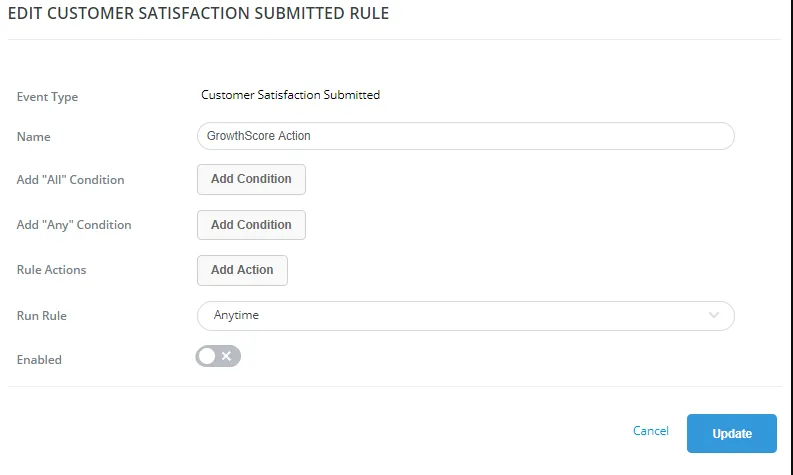
Add an ALL Condition which will select:
all Customer Satisfation Scores that are 3 i.e. Great
Just click on the drop down, find ‘Customer Satisfaction Score’ and proceed.

Add Action to the Rule Actions. From the drop down select, Trigger an App Action.
You should get the name of the Action created for GrowthScore automatically as shown above. If not, ensure that you map it to the GrowthScore action you defined earlier.

Set the Rule to run anytime & enable it.

Your final rule should look similar to as shown below. If so, go ahead and click Update.
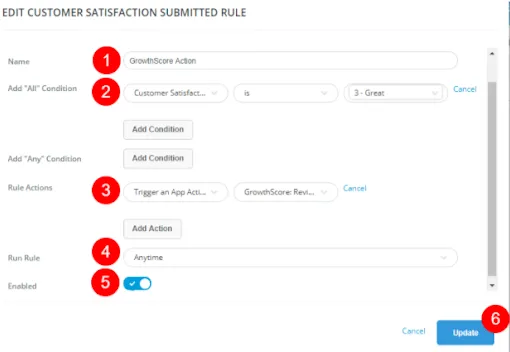
That completes the Desk.com – GrowthScore integration. You are now ready to ask for reviews from customer who had a happy support experience with your team.
Happy GrowthScoring 😉